As specified for all Konyks devices you need a 2.4Ghz wifi network
Also pay attention to the Wi-Fi security protocol, you must choose the WPA2-PSK / AES mode
(setting in the interface of your internet box or router)
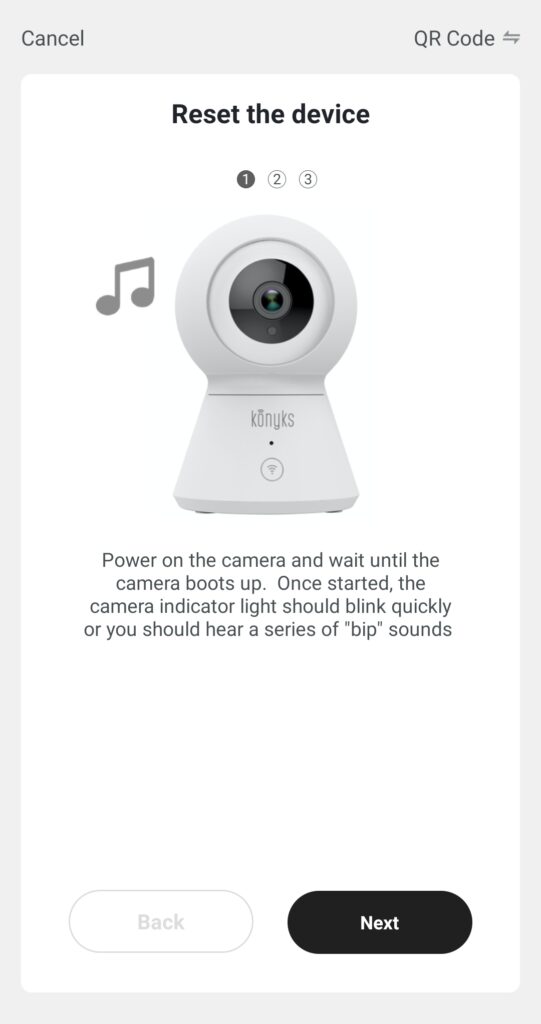
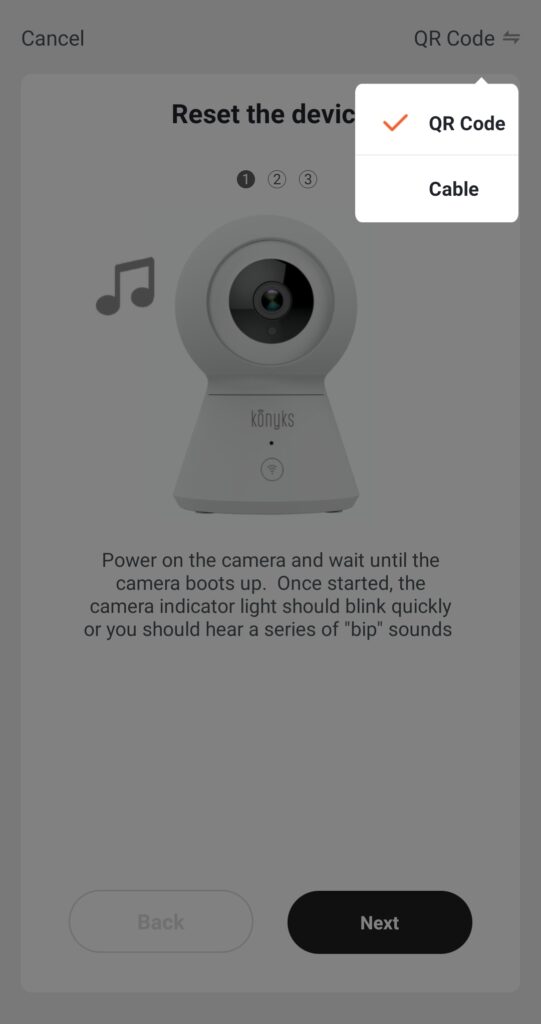
If you have difficulty connecting in EZ mode, do not hesitate to try the QR Code mode which works with great reliability. With the Livebox it is sometimes necessary to deactivate the firewall. You can reactivate it after installation. Temporarily disabling the firewall during setup would allow you to spend much less time.
Error message "Wi-FI name or password too long" when connecting the Camini +
It seems that this is linked to pairing (connection) in QR CODE.
So you can,
In addition to this, you need to know more about it.
1- either switch to EZ Mode, i.e. simple mode via wifi. (The Qr code makes it easier to focus on identifying the device to be connected)
To do this, direct you to the Konyks app:
-you click on "+"
- then on "camera"
- and at the top right you can click on "net pairing mode" a small window will open,
you will choose "ez mode"
2- or modify your wifi code from the configuration platform of your box.
3-Be aware that in QR Code mode it is possible that, despite the warning message, you can force the passage and connect in QR code with a code of more than 20 characters, the only downside is that this will not not work every time and we can guarantee an immediate connection in this case.
What you should know before installing your Konyks Interi connected switch
Installation
First of all, know that if you want to equip yourself with a connected switch, your installation must be equipped with these wires:
1 / The Live phase (red or brown, with "L" for "Live"),
2 / The neutral (blue, with "N" for "Neutral")
A neutral wire is therefore essential for installing a switch
Which bulb to choose?
The Konyks Interi switch allows you to vary the light intensity of the LED bulbs to which it is linked.
So it is necessary to associate a dimmable bulb.
If a bulb is dimmable, it means that it is compatible with an LED dimmer also called an LED dimmer.
On the other hand, it is not necessary or even not recommended to associate a connected bulb.
Can Interi Max be used with a spotlight rail?
If you have a rail of LED spotlights it is theoretically possible to drive it with Interi. However, it is very important not to exceed the Maximum capacities of Interi (i.e. 400W / 2A at most). For this it is not enough to add the power in W of the spots and to compare. In fact, LEDs do not work like traditional bulbs, when they are switched on there is a phenomenon called "inrush". When switching on an LED bulb, the bulb consumes much more than indicated on the bulb's wattage and current specifications. Therefore, it is recommended to use Interi with a Single bulb. If you connect a spotlight rail we recommend at this stage not to exceed 5 small LEDs with a cumulative nominal power <40 Watts
How long is the consumption history of the plug stored?
The history is 1 year. The data is saved in the Cloud. After a year, the data is replaced by the new ones as they arise.
How to Install the Senso detector?
Do not hesitate to watch the tutorial video made by Amazing Mac TV
How to reset Vollo (or Vollo Max)
After changing the box or password, for example, you will have to reset Vollo and reinstall it:
Press and hold the Top button for about 15 seconds, until the light flashes rapidly.
Open the Konyks app on your smartphone to reinstall the device
PS: the top is the side where the wires arrive
How to disassemble the front plate of the Vollo Max for wall ?
Here are some tips for mounting and dismounting the front panel of the Vollo and Vollo Max Vollo Max LD Disassembly
To close all your shutters without voice assistants
To close all your shutters at the same time and without voice assistants, you can:
Create a scenario.
It could not be easier:
Enter scenario,
(clicking in the middle at the bottom)
Then in define a condition, click on "Type to execute"
Then click on "run device"
Then Choose your Vollo or Vollo MAX
Choose ► switch
Specify whether you want to ► open or ► close
Save
again add a task by clicking on the "+" which is in front of the word "Task"
Repeat the same operation with your other Switch
You will get this:
Validate everything,
The next time to open all your shutters, all you have to do is activate the scenario you have created.
☼☼☼
How do I order Konyks products by voice if I don't have Google Home or Amazon Alexa?
No need for a speaker with voice assistant, if you have a smartphone you can download the GOOGLE ASSISTANT application and order products by voice by talking to your smartphone
Find out how by downloading the Tutorial by clicking here
If you have an iPhone you can also program Siri shortcuts, see FAQ below
How do I link Konyks products to Alexa / Amazon Echo?
Start by installing your devices in the classic way from the Konyks application
Download the Amazon Alexa app. Enter your Amazon credentials
In the Amazon Alexa application, go to the Skills menu, search for "Konyks" then activate the skill. Enter your identifiers used for the Konyks app then choose Konyks again
Still in the Amazon Alexa application, go to "Connected home" then "Add a device".
Your Konyks devices will then be automatically detected
Once these are detected, you can control them via the app or by voice!
For information for those who already use them, Skills SMARTLIFE and TUYA SMART are also compatible with Konyks devices
I can't trigger Siri Shortcuts by voice from my iPad or another iPhone?
This is a limitation related to iOS. Voice recordings of Siri Shortcuts are stored locally on each device. Siri shortcuts can only be launched by voice from the device on which they were created